How to Make a Website From Scratch in 2026: Complete Step-by-Step AI Guide
Want to make a website from scratch but have no idea where to start? You are not alone. Every day, thousands of creators, business owners, and freelancers search "how to make a website", "how to create a website", and "how to build a website from scratch", and most feel overwhelmed by technical jargon, expensive developers, and confusing tools. The truth is, building your own website in 2026 has completely changed.
The game-changer? You no longer need to spend days dragging static blocks or configuring complex layout sidebars. With modern AI website builders like NoCodeVista, you can simply describe what you want in plain English, and a generative multi-agent studio builds an entire, production-ready website with tailored copy, professional layouts, and verified niche imagery in under 15 seconds. Once generated, you can refine text, replace images, and configure SEO directly on the visual canvas.
What You Will Learn
- How to make a website from scratch: a streamlined 7-step workflow from initial prompt to live launch
- How to turn a single text prompt into a complete 8 to 10 section website with AI
- How to design a website by editing text, links, and imagery directly on the canvas without sidebars
- How to make a website for your small business, portfolio, or agency in minutes
- How to optimize images with automated WebP compression and configure built-in SEO
- How to save and preview changes in real time across desktop and mobile screens
- How to publish your website live with custom domains, free SSL, and zero hosting headaches
- Zero coding required: no HTML, CSS, or JavaScript needed
Quick Start
If you want to jump straight in: Launch the NoCodeVista AI Start Screen free, enter a simple description of your business or project, and watch your complete website assemble in real time. Customize it with inline editing, then publish with one click.
The 2026 Shift: Why Prompt-to-Website Beats Traditional Drag-and-Drop
Traditional website builders forced you through a rigid process: choose a generic template, stare at placeholder text, hunt through menus to find components, and fight with pixel margins. In 2026, website creation has evolved into two powerful phases:
- Phase 1 (Instant AI Synthesis): Instead of starting from a blank page or an unfocused template, you provide a natural language prompt. NoCodeVista's 4-Agent studio acts as your personal design agency: planning the brand narrative, writing conversion-focused copy, sourcing high-resolution niche photography, and synthesizing clean semantic code.
- Phase 2 (Zero-Clutter Inline Customization): Once the foundation is generated, you do not need complex property panels. You double-click text to type directly on screen, use the floating toolbar for links, and double-click photos to upload WebP assets with built-in image SEO.
Whether you need a freelancer portfolio, a small business website, or a high-converting landing page, this guide walks you through the exact end-to-end workflow.
Step 1: Describe Your Website Idea (Prompt-to-Website)
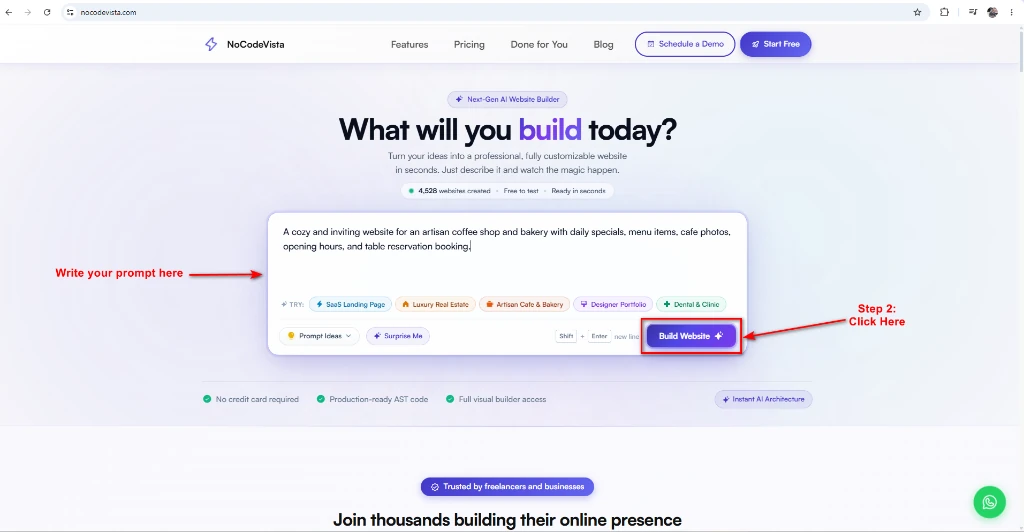
The first step to creating your website in 2026 is simply describing what you want to build in plain English. With NoCodeVista, you begin on the AI Start Screen:
- Navigate to the NoCodeVista Start Screen.
- In the central prompt box, describe your business, offer, and key requirements. For example, as shown in the screenshot:
"A cozy and inviting website for an artisan coffee shop and bakery with daily specials, menu items, cafe photos, opening hours, and table reservation booking." - Need inspiration? You can also click any of the pre-built Quick Starter Chips (SaaS Landing Page, Luxury Real Estate, Artisan Cafe & Bakery, Designer Portfolio, or Dental Clinic) to load an instant prompt.
- Click the purple "Build Website" button (or press Enter) to initiate generation.
Even if you type a short prompt, NoCodeVista's pre-flight intelligence enriches your request into a comprehensive architecture: selecting harmonic color palettes, clean typography, and essential commercial sections like hero banners, service showcases, testimonials, and contact forms.
Step 2: Watch the AI Brand Synthesis Engine Construct Your Architecture
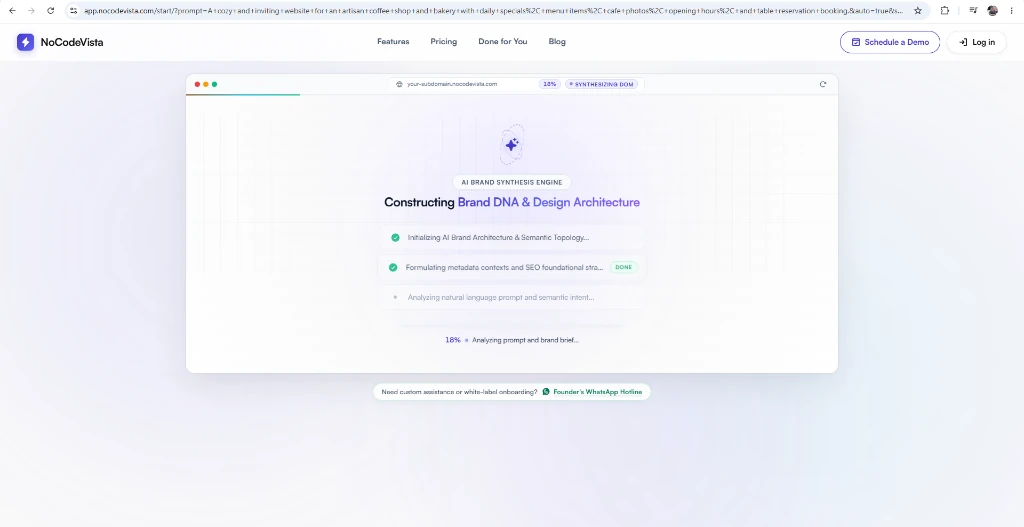
Once you click build, NoCodeVista's AI Brand Synthesis Engine gets to work in real time. Rather than stitching together rigid template blocks, specialized agents assemble a bespoke design architecture:
- Initializing AI Brand Architecture: Establishes mathematical container hierarchies, semantic topology, and responsive viewport breakpoints.
- Formulating Metadata & SEO Strategy: Automatically writes title tags, meta descriptions, Open Graph cards, and structured schema markup.
- Analyzing Semantic Intent: Synthesizes tailored conversion copy, headlines, value props, and call-to-action triggers for your specific niche.
- Building Clean Page Layouts: Assembles fast-loading page sections with curated photography, matching colors, and modern styling.
Within 10 to 15 seconds, the progress bar reaches 100% and your complete website is ready for preview.
Step 3: Preview Your Generated Site and Enter the Builder
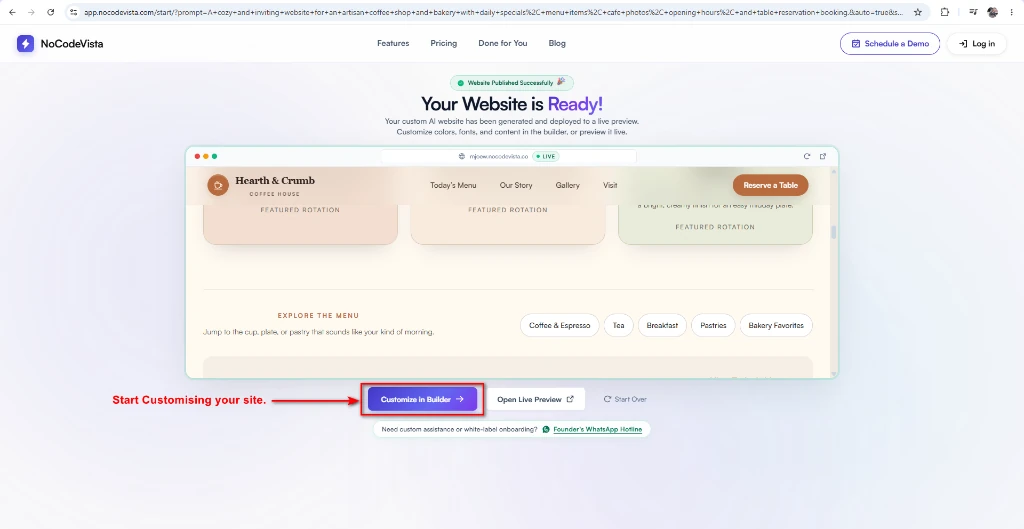
As soon as synthesis finishes, you are greeted with the "Your Website is Ready!" screen. Here, your generated site (for example, the "Hearth & Crumb Coffee House" site shown above) is already deployed to a live interactive preview:
- Inspect the Live Preview: Scroll through your 8 to 10 generated sections: hero banner, feature rotation cards, menu exploration filters, story section, and table reservation booking.
- Test Live Interactivity: Click through buttons, test navigation links, and verify responsive layout wrapping.
- Launch the Editor: Click the purple "Customize in Builder" button to open the full visual canvas where you can personalize text, logos, colors, and media.
Step 4: Double-Click Content to Edit Text Directly Inline on the Canvas
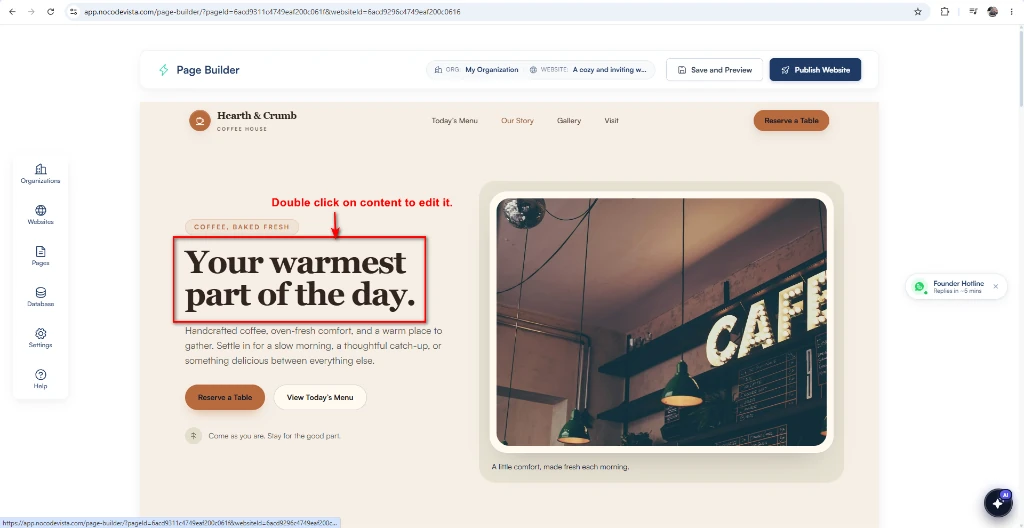
This is where NoCodeVista's Zero-Clutter Canvas UI excels. Unlike traditional builders that force you to hunt through confusing right-hand sidebar panels, you edit directly on screen:
4.1 Double-Click to Edit Any Text
Simply double-click on any headline (such as "Your warmest part of the day."), paragraph, button label, or badge. The text block unlocks immediately for in-place typing: exactly like editing a document.
4.2 Floating Contextual Bubble Toolbar & Quick Links
Highlighting any word or sentence reveals a floating bubble toolbar:
- Rich Formatting: Apply Bold, Italic, or Underline styling with a single click.
- Instant Hyperlinks (Ctrl+K): Press
Ctrl+K(orCmd+Kon Mac) to link text to any page URL, email, or telephone number. - Style Preservation: The engine automatically preserves your theme's font pairings, contrast ratios, and line-heights without manual tweaking.
Step 5: Double-Click Media to Upload Images and Configure Built-in SEO
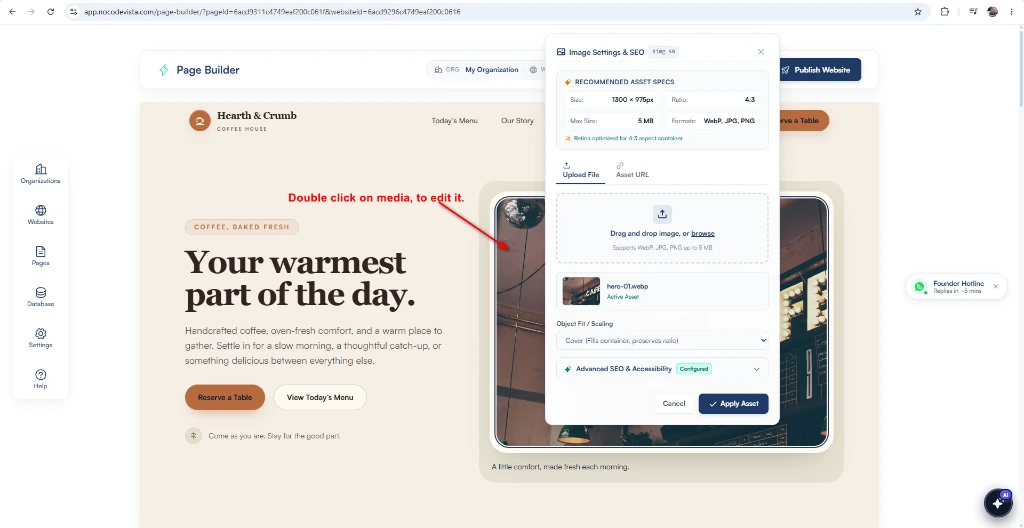
Your generated site comes pre-populated with high-resolution photography, but you can effortlessly swap in your own photos, logos, or menu shots:
5.1 Recommended Asset Specs
Double-click any image on the canvas to launch the Image Settings & SEO window. It automatically specifies optimal dimensions for that container (e.g. 1300 × 975px at 4:3 ratio, Retina-optimized).
5.2 Automatic WebP Compression & Cloudflare R2 Delivery
Upload or drop your JPG or PNG photo into the asset modal: the system converts it to lightweight modern WebP format on upload and serves it through high-speed Cloudflare R2 CDN edge nodes for instant page loading.
5.3 Built-in Image SEO & Accessibility
Expand the Advanced SEO & Accessibility drawer right inside the modal to specify alt text, image titles, and descriptions. This ensures screen readers and Google Image search index your visual content accurately.
Click "Apply Asset" and your new image immediately hydrates onto your canvas.
Step 6: Save and Preview Your Changes
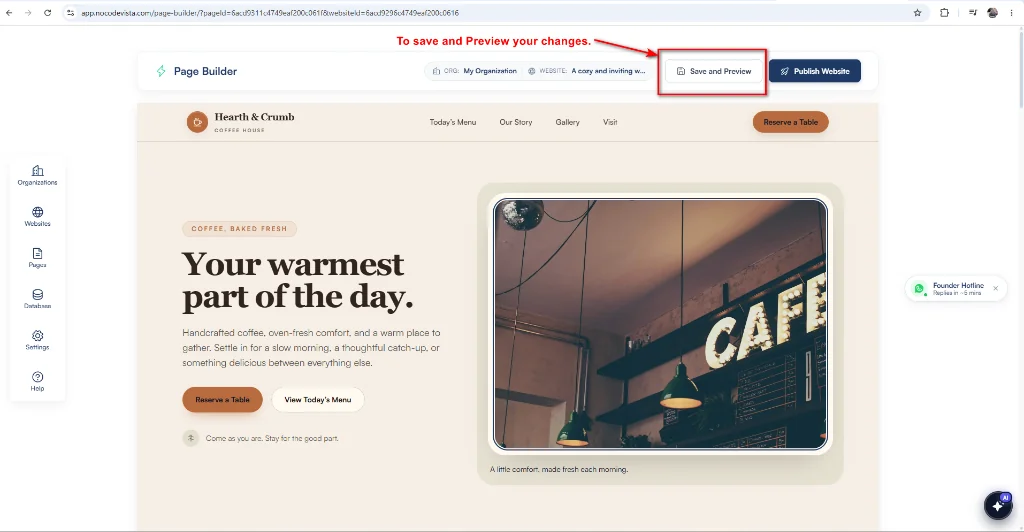
As you refine your copy, headlines, and visual assets, keeping your progress synced is effortless. In the top navigation bar of the Page Builder, click the "Save and Preview" button (highlighted with the red callout above):
- Instant Auto-Saving: The builder saves your text, photos, and layout changes instantly in the background without refreshing or interrupting your flow.
- Interactive Staging Preview: Opens a full-fidelity interactive preview where you can test navigation links, menu dropdowns, and button actions exactly as a live visitor will experience them.
- Cross-Device Inspection: Verify how your typography, cards, and image aspect ratios adapt seamlessly across desktop, tablet, and mobile viewpoints.
Step 7: Publish Your Website Live with One Click
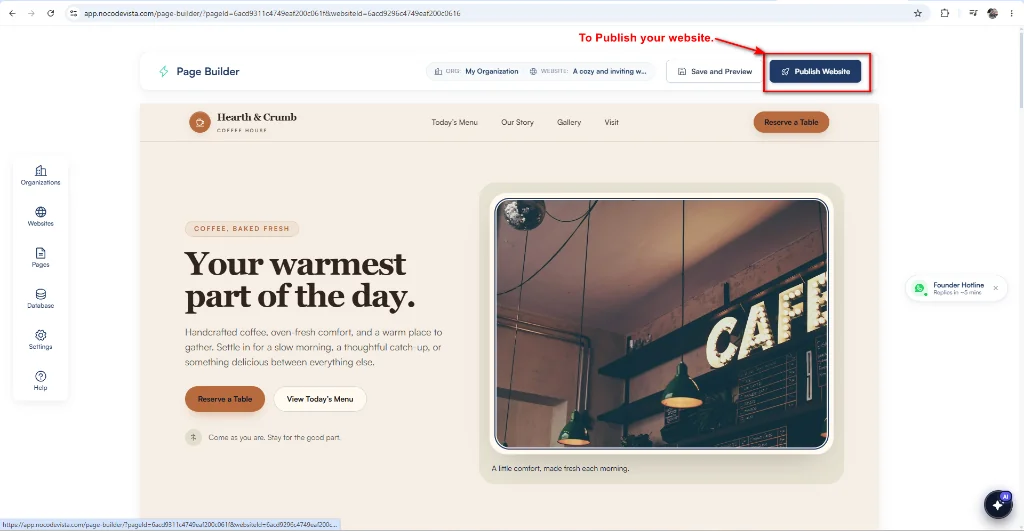
Once your content is personalized and your preview looks flawless, launching your site live takes just a single click:
7.1 One-Click Live Publishing
In the top-right corner of the Page Builder canvas (highlighted with the red callout above), click the blue "Publish Website" button. Your website is packaged into a super-fast, mobile-ready site and published across global high-speed servers in seconds.
7.2 Connect Your Custom Domain with Free SSL
Your site goes live immediately on a free secure subdomain (e.g. yourbrand.nocodevista.com). In site settings, you can attach any custom domain (e.g. hearthandcrumb.com) with automated SSL certificates provisioned at no extra cost.
Congratulations! You have successfully built, customized, and published a high-converting website from a single prompt in under 15 minutes: with zero coding, zero bloated templates, and complete visual freedom.
How to Make a Website for a Small Business with AI
If you are a business owner looking to make a website for your small business, you do not need weeks of development or thousands of dollars. NoCodeVista's dedicated small business website builder turns your business concept into a conversion-ready website in minutes:
Whether you operate a local restaurant, boutique clinic, consulting firm, or service agency, the AI crafts an industry-tailored layout complete with trust badges, service breakdowns, customer reviews, and appointment booking forms:
- For Local Businesses & Restaurants: Prompt the AI with your specialty, opening hours, and address. The generator builds an enticing hero, menu grids, and Google Maps direction cards.
- For Real Estate Professionals: Use our specialized real estate website builder to generate property showcases, valuation calculators, and buyer lead capture forms.
- For Attorneys & Law Firms: Use the authoritative law firm website builder to showcase practice areas, partner credentials, and confidential case evaluation intake.
- For Creatives & Photographers: Use the photographer website builder for responsive portfolio galleries, client proofing rooms, and booking packages.
- For High-Converting Campaigns: Use the lead generation website builder to deploy multi-step lead capture funnels connected directly to your CRM.
Every small business website is engineered for speed, mobile responsiveness, and Google local SEO: so prospective customers find your phone number, services, and location immediately.
Need a Completely Custom Build? We Can Build It for You
Too busy managing operations to build your site? NoCodeVista provides a complete Done-for-You website development service. Share your requirements with our team, and our engineers will deliver a bespoke, production-ready website tailored to your brand in 3 to 7 days.
How Long Does It Take to Build a Website with AI?
One of the biggest advantages of prompt-to-website generation is speed. Compare the traditional timelines with the modern AI approach:
- With NoCodeVista AI: Initial website generated in 15 seconds. Full inline customization and asset replacement takes 10 to 15 minutes.
- Traditional Template Builders: 1 to 2 days of manual dragging, formatting, and plugin configuration.
- Custom Web Agency: 3 to 8 weeks and $2,000 to $10,000+ in agency fees.
- Enter business prompt or pick starter chip: 1 minute
- Multi-agent AI synthesis: 15 seconds
- Inline text and headline personalization: 5 to 10 minutes
- Upload custom photos with automated WebP compression: 3 to 5 minutes
- Save and preview changes across devices: Instant
- 1-Click publish to live CDN: Instant (under 10 seconds)
Start Building Your Website with AI Today
Building a website from scratch is no longer an intimidating technical hurdle. With NoCodeVista, you can transform a single idea into a sleek, high-performing website in minutes without touching a line of code.
Here is what makes NoCodeVista the premier way to create your website in 2026:
- Conversational AI prompt-to-website generator creating 8 to 10 production-ready sections
- Zero-Clutter visual canvas with direct inline text and rich link editing
- Universal media manager with automated Sharp WebP compression and Cloudflare R2 CDN
- Collapsible image SEO accordion for Google Image rankings and accessibility
- High-speed global hosting, automated SSL encryption, and custom domain connection included
- Free plan available with transparent, affordable annual pricing
Ready to Build Your Website with AI?
Describe your idea and launch your high-converting website in minutes. Zero coding, zero complexity, instant results.
Generate Your Free Website NowFrequently Asked Questions About Building a Website
1. How much does it cost to make a website with NoCodeVista?
NoCodeVista offers a free plan that lets you generate and preview your website immediately. For custom domain hosting, advanced publishing, and unlimited projects, plans start at an affordable yearly rate. Visit our pricing page to view all options.
2. Can I build a website without any coding or technical skills?
Yes, absolutely. NoCodeVista is built entirely for non-technical creators and business owners. You describe what you want in plain words, and the AI handles layout, color theory, typography, and responsive code. Once generated, you edit text and images directly on screen just like working in a text document.
3. How long does it take to make a website with NoCodeVista?
Your complete website is generated in approximately 10 to 15 seconds. Customizing your copy, uploading your own photos, and adding your contact links typically takes 10 to 15 minutes. Publishing live takes one click.
4. Can I use my own custom domain name?
Yes. Every website includes a free secure NoCodeVista subdomain (e.g. yourbrand.nocodevista.com), and you can connect any custom domain name (like yourbrand.com) with automated free SSL encryption from your dashboard.
5. Is the generated website mobile-friendly?
Yes. Every website generated by NoCodeVista uses responsive container queries and fluid typography. Your layout automatically reflows to look stunning across smartphones, tablets, laptops, and ultra-wide desktop monitors.
6. Can I edit and update my website after publishing?
Yes. You can return to your NoCodeVista dashboard at any time, double-click to edit text or replace images, and re-publish with one click. Your updates reflect live on the web instantly.
7. What if I want an expert to build my website for me?
NoCodeVista offers a dedicated Done-for-You development service. Our team works with you to design, write, and launch a bespoke website tailored to your exact industry requirements in 3 to 7 days. Explore our services page for full details.
8. Can I make a website for my small business?
Yes. Small business websites are our specialty. Whether you need a local salon page, real estate portal, consulting site, or restaurant menu, simply describe your services in the prompt to receive an industry-grade layout with built-in lead forms and Google Maps integration.
9. What is the very first step to create a website?
The first step is visiting the NoCodeVista Start Screen and writing a 1-sentence description of what you want to build. You do not need to purchase web hosting or install server software beforehand: everything is handled automatically in the cloud.
10. How does NoCodeVista differ from older website builders?
Older builders require you to manually drag boxes, adjust padding sliders, and piece together generic templates. NoCodeVista uses a multi-agent AI engine to generate an entire cohesive website from a prompt, paired with a Zero-Clutter Canvas for fast inline editing without sidebar distractions.